
Setup guide
Set up your smartwatch
Charge it, install your watch's app and pair it with your phone in four steps.
Before you begin: fully charge your smartwatch.
Download the app
Find your watch below to see which app it uses. You can also scan the QR code on the box your smartwatch came in, or the QR code in your smartwatch’s settings. Then install the app on your phone: Google Play Store for Android, or the Apple App Store for iOS.
Your watchApp to install
-
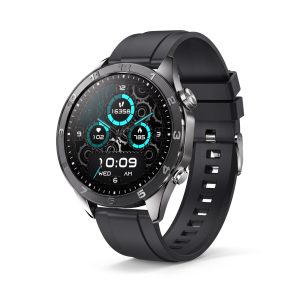 312 AMOLED Smartwatch
Da Fit
-
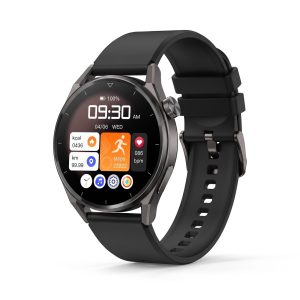 Classic Smartwatch
GloryFit
-
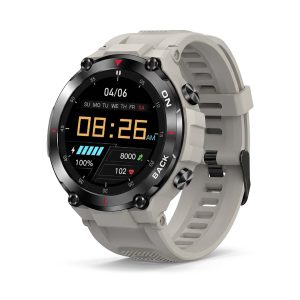 Explorer GPS Smartwatch
Infowear
-
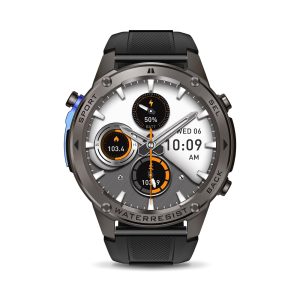 Explorer Plus GPS Smartwatch
GloryFit
-
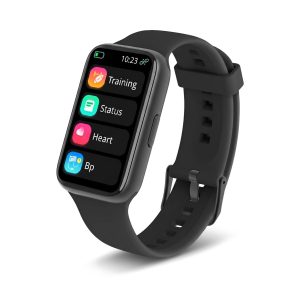 Finesse Slim Fitness Tracker
Smart Wristband 3
-
 Pulse Smartwatch
Da Fit
-
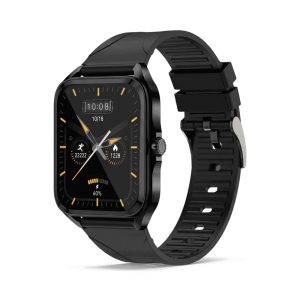 Sirius Smartwatch
GloryFit
Pair your devices
Make sure your smartwatch is turned on. Enable Bluetooth on your phone, but do not pair the watch through your phone’s Bluetooth settings. Instead, open the app, go to Device > Add New Device, select your smartwatch from the list, and follow the on-screen prompts to complete pairing.
In Da Fit, the Device tab is at the bottom of the screen. To reset the connection, just unpair, then pair again.
Set up notifications
In the app, toggle on the Push Notifications you want: SMS, email, and any third-party apps.
Customise your watch face
Browse the dial centre in the app to pick a style, or import your own photo as a custom dial.
You’re all set! Your smartwatch can now track health and fitness and mirror your phone’s apps, and watches with Bluetooth calls can make and receive calls. The Da Fit app also has some great exercise videos to try at home or in the gym.
Watch the video tutorial
Prefer YouTube? Watch “Pairing a TTP smartwatch to a smartphone” on the Tri-Tek Pro channel.

